
Determining the exact number of days between two dates serves as a critical function across project management, legal contracts, healthcare records, and personal planning. While the concept appears mathematically simple, achieving precision requires understanding how different calculation methods handle date serial numbers, unit conversions, and boundary conditions.
Spreadsheet platforms store dates as sequential serial numbers, enabling mathematical operations that return whole-number results. However, variations in function syntax and calculation methodology can produce different outcomes depending on whether you need total calendar days, complete months, or specific unit intervals.
This guide examines verified calculation methods from official technical documentation, explores spreadsheet implementations, and identifies where additional verification becomes necessary for specialized scenarios.
How Do I Calculate the Number of Days Between Two Dates?
Simple Subtraction
Subtracting the earlier date from the later date works in Excel and Google Sheets, where dates are stored as serial numbers beginning from system-specific epochs.
Online Calculators
Web-based tools offer instant results for quick lookups, though verification against established formulas ensures algorithmic accuracy.
DATEDIF Function
A specialized spreadsheet function accepting unit parameters for days, months, years, or hybrid intervals between dates.
Business Day Adjustments
Advanced calculations excluding weekends and holidays require specific algorithms not detailed in standard spreadsheet documentation.
- Excel and Google Sheets store dates as sequential numbers starting from specific epochs (January 1, 1900, or 1904), enabling direct arithmetic subtraction.
- The DATEDIF function requires the start date to precede the end date chronologically; reversing the order generates errors rather than negative values.
- Calculations return whole numbers exclusively; partial days are truncated rather than rounded to the nearest integer.
- Microsoft documentation warns that Excel’s DATEDIF may calculate incorrect results in certain scenarios, as the function exists primarily for Lotus 1-2-3 compatibility.
- Month and year units count only completed periods; for example, September 30, 2015 to February 28, 2016 registers as four months, not five.
- Simple subtraction formulas follow the syntax
=End_Date - Start_Dateacross both spreadsheet platforms. - Unit flexibility allows extracting days (“D”), months (“M”), years (“Y”), or hybrid units (“MD”, “YM”, “YD”) from the same function call.
| Start Date | End Date | Result | Unit Parameter |
|---|---|---|---|
| Sept 30, 2015 | Feb 28, 2016 | 4 months | “M” |
| Jan 1, 2024 | Jan 31, 2024 | 30 days | “D” |
| Jan 1, 2024 | Dec 31, 2024 | 0 years | “Y” |
| Jan 1, 2024 | Dec 31, 2024 | 365 days | “D” |
| Later date | Earlier date | Error | Any |
| Jan 1, 2020 | Jan 1, 2021 | 366 days | Subtraction |
Best Free Online Days Between Dates Calculators
Numerous websites offer dedicated date duration calculators that compute intervals between user-selected dates. While these tools provide immediate convenience, official technical documentation focuses primarily on spreadsheet implementations rather than web-based calculator validation methods.
Users seeking online tools should verify results against established spreadsheet formulas to ensure algorithmic accuracy. Specific recommendations for particular calculator platforms were not available in the reviewed sources.
How to Calculate Days Between Dates in Excel or Google Sheets
Direct Subtraction Method
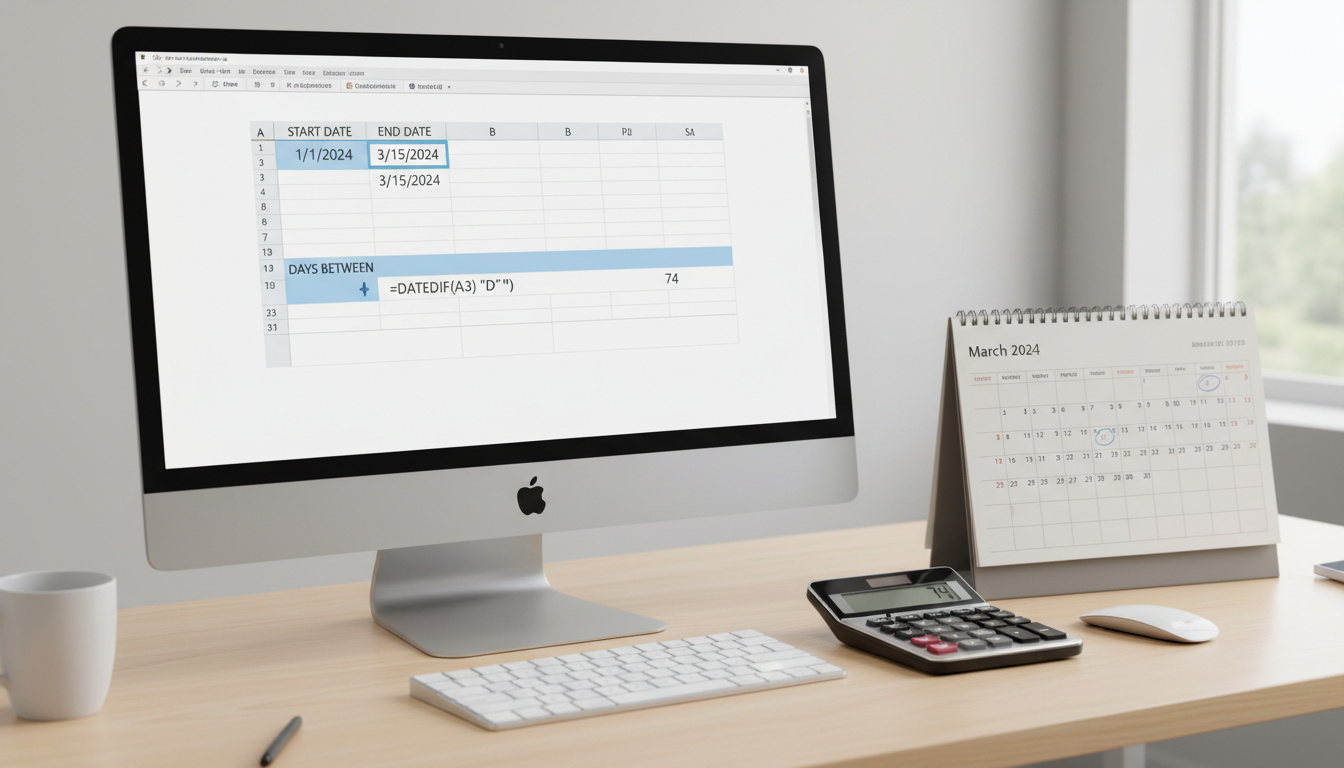
Both Excel and Google Sheets store dates as serial numbers, allowing basic arithmetic operations. The formula =End_Date - Start_Date returns the total days between two dates. This approach functions identically across both platforms when dates are properly formatted as date values rather than text strings.
The DATEDIF Function Syntax
For granular control, the DATEDIF function accepts three parameters: start date, end date, and unit type. Technical specifications note the syntax as =DATEDIF(start_date, end_date, unit).
Available unit parameters determine output format: “D” returns total days, “M” returns complete months, “Y” returns complete years, “MD” returns days after subtracting whole months, “YM” returns months after subtracting whole years, and “YD” returns days assuming dates fall within one year. Dokin’s documentation details these parameter behaviors.
Microsoft explicitly warns that Excel’s DATEDIF function may calculate incorrect results under specific scenarios. The function persists primarily to support legacy workbooks imported from Lotus 1-2-3 rather than as a primary precision calculation tool.
GeeksforGeeks documentation emphasizes that the start date must chronologically precede the end date. Reversing these parameters causes the function to return errors rather than negative integers or absolute values.
Does Days Between Dates Include the End Date? Handling Leap Years and Variations
Standard calculation methods determine intervals between date boundaries, but specific conventions for inclusive versus exclusive counting remain unspecified in the reviewed documentation. Whether a calculation includes the start date, end date, or neither affects the final count by one or two days depending on methodology.
Similarly, while leap years add a 29th day to February every four years, the reviewed sources did not contain specific information regarding leap year handling in standard date difference formulas. Users requiring precise leap year calculations should verify how their specific platform handles February 29 transitions and leap year boundaries.
For applications where inclusive counting or leap year boundaries affect contractual, legal, or financial outcomes, manual verification of calculation methodology against authoritative calendar standards becomes essential.
Sample Date Calculations and Practical Examples
- Project Timeline Assessment: A contract spanning January 1, 2024 to January 31, 2024 registers as 30 days via simple subtraction, sufficient for most project management calculations.
- Employment Duration: September 30, 2015 to February 28, 2016 yields 4 months using the “M” unit parameter, demonstrating how DATEDIF counts only completed months rather than calendar month boundaries.
- Patient Age Tracking: Healthcare applications commonly use date differences for calculating patient ages and treatment durations in clinical record management.
- Event Planning: Computing spans between historical events or future milestones, such as planning around Eid ul-Fitr 2025 dates, requires precise day counts for travel and scheduling coordination.
- Aviation Logistics: Flight scheduling across international date lines, such as reviewing Perth to Bangkok flight schedules, involves accurate date duration calculations for itinerary synchronization.
Established Methods vs. Remaining Uncertainties
Verified Calculation Standards
- DATEDIF syntax and unit parameters are documented across platforms
- Whole number return values are standard across all methods
- Date order requirements mandate start date precede end date
- Excel serial number storage begins January 1, 1900
- Completed period counting for months and years is standardized
Areas Requiring Clarification
- Inclusive vs. exclusive end date counting conventions
- Leap year algorithm specifics in date difference functions
- Business day exclusion methodologies and holiday tables
- Timezone boundary handling for international calculations
- Julian vs. Gregorian calendar conversion protocols
Why Date Difference Calculations Matter
Organizations rely on accurate date calculations for determining project timelines, computing employment duration, measuring patient ages, and calculating spans between significant events. These functions serve financial modeling, human resources record keeping, and medical record management where precision affects billing, eligibility, or compliance.
Legal contracts often specify durations in days or months, requiring precise calculation to determine expiration dates or renewal deadlines. Similarly, aviation, event planning, and international coordination depend on accurate day counts for scheduling resources, personnel, and transportation across time zones.
Official Documentation and Technical Sources
“The DATEDIF function may calculate incorrect results under certain scenarios.”
— Microsoft Support Documentation
“DATEDIF returns the difference between two dates with multiple unit options… the start date must be earlier than the end date.”
— GeeksforGeeks Technical Reference
Summary
Calculating days between dates relies on straightforward subtraction in spreadsheet environments or specialized DATEDIF functions offering unit flexibility for days, months, and years. While basic methods are well-documented through Microsoft and Google Sheets technical sources, users should verify results when accounting for leap years, business days, or inclusive date counting. For quick reference regarding upcoming events, check the Eid ul-Fitr 2025 dates for planning purposes.
Can I calculate age in days?
While date difference functions can determine spans between birth dates and current dates, specific methods for calculating age exclusively in days were not detailed in the reviewed technical documentation. Standard DATEDIF units focus on years, months, and days separately rather than cumulative day counts.
What is the formula for date difference?
The primary formulas include simple subtraction =End_Date - Start_Date or the DATEDIF function =DATEDIF(start_date, end_date, "D"). Both return the number of days between dates, though DATEDIF offers additional unit options for months and years.
Why does my Excel formula show an error?
DATEDIF returns errors when the start date follows the end date chronologically. Additionally, Microsoft warns that DATEDIF may calculate incorrectly in certain scenarios, as the function exists primarily for backward compatibility with Lotus 1-2-3 rather than as a precision tool.
How do I calculate months between dates?
Use the DATEDIF function with unit parameter “M” for complete months. Note that this counts only fully completed months; for example, September 30 to February 28 registers as 4 months, not 5, because the end date hasn’t reached the 30th of the month.
Can I include the end date in the count?
Standard DATEDIF and subtraction formulas calculate the interval between dates, effectively counting the start date as day zero. To include the end date in your total, add 1 to the result, though specific inclusive counting conventions were not documented in the reviewed sources.
Related stories



Liam O'Brien covers Australian politics and public affairs for Australia Focus.